Using Proxygen
Learn how to use built-in tools.
It is fairly easy to get going with Proxygen for iOS. Once you’re done with installation, just enable the proxy using the toggle in the top toolbar. You can then move Proxygen app to the background and generate the traffic you want to inspect. Launch other apps or browse websites in Safari, and then return to Proxygen to see captured messages.
Tools
History
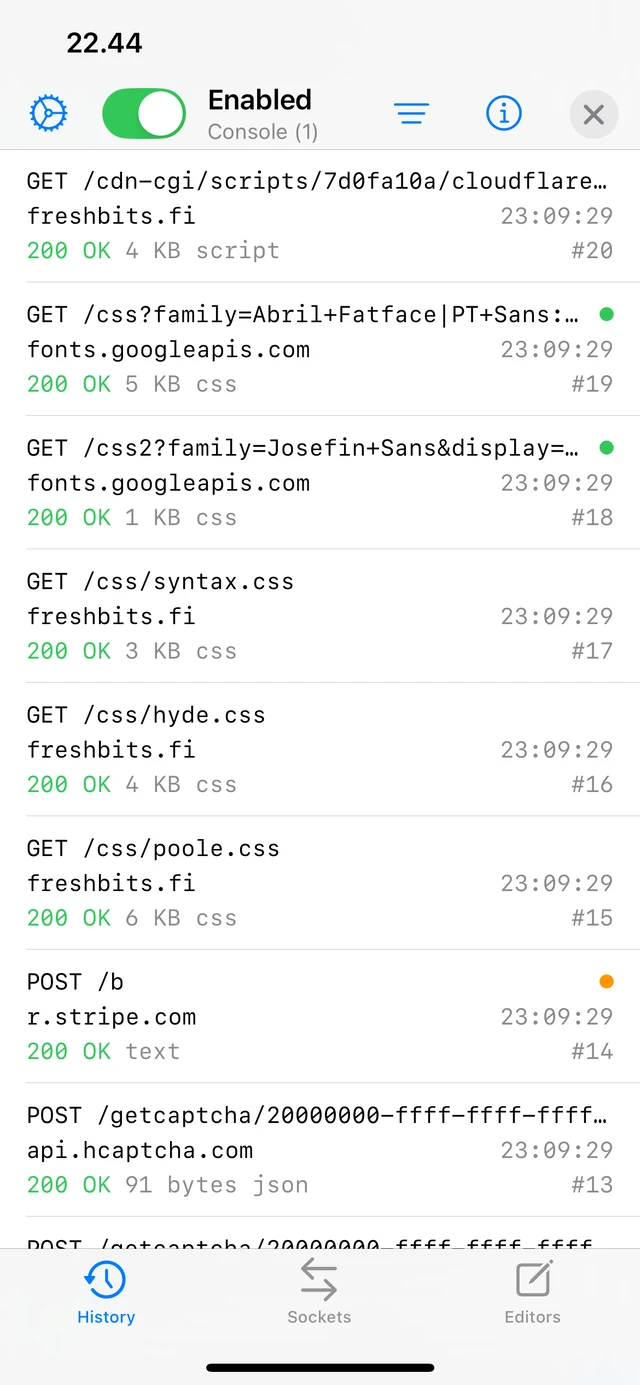
History tab shows a list of all captured HTTP messages. You see basic details of each message, including request method, target host, and response status code and content, along with a timestamp.
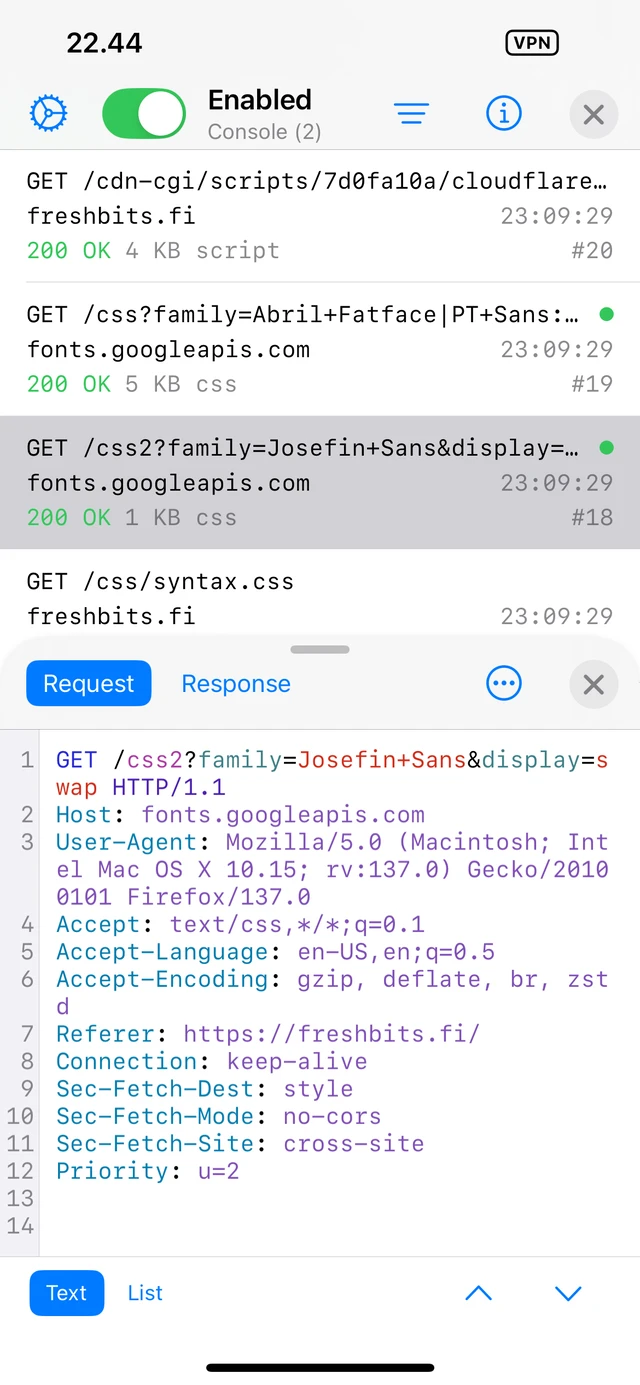
Tap any message to reveal the message viewer that allows you to inspect the request and response in various display modes.
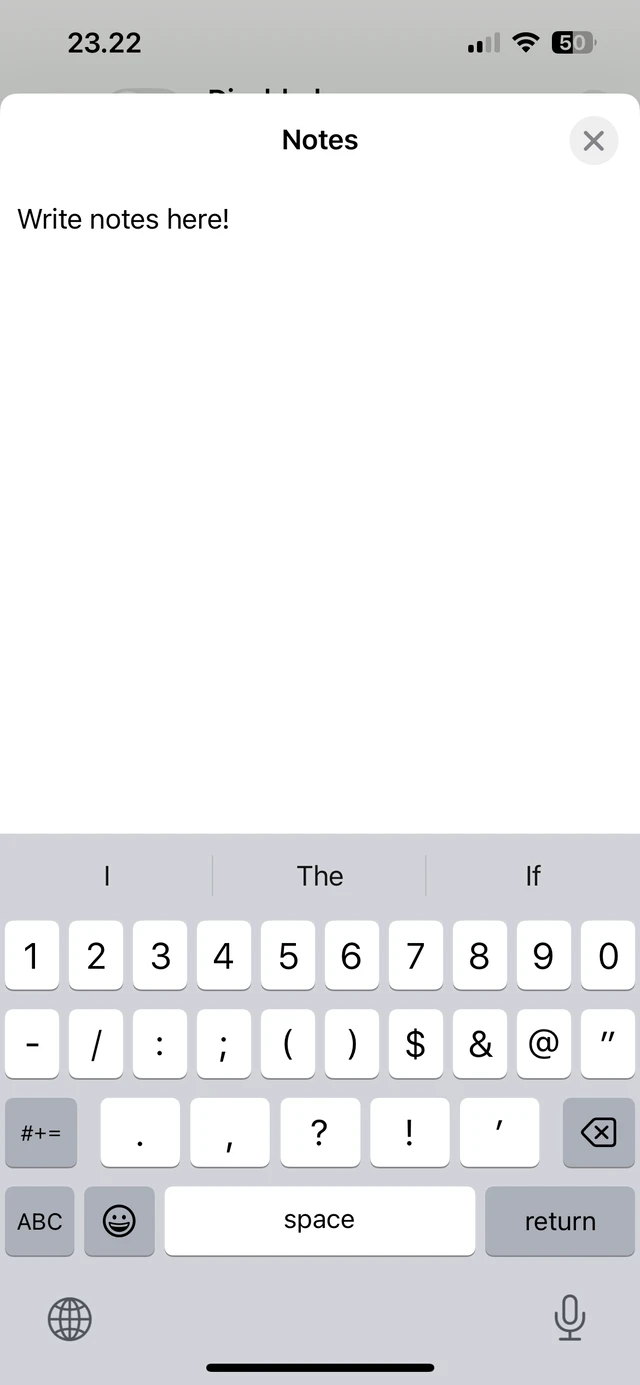
Tap and hold any message to open a context menu that has options to edit the message, add a rewrite rule, and apply a filter to only show messages with that target host. You can attach notes to any message or set a flag for easier filtering.

Swipe right to flag a message or copy its request to a new editor. Swipe left to delete a message. Swipe up or down with two fingers to select multiple messages.
Sockets
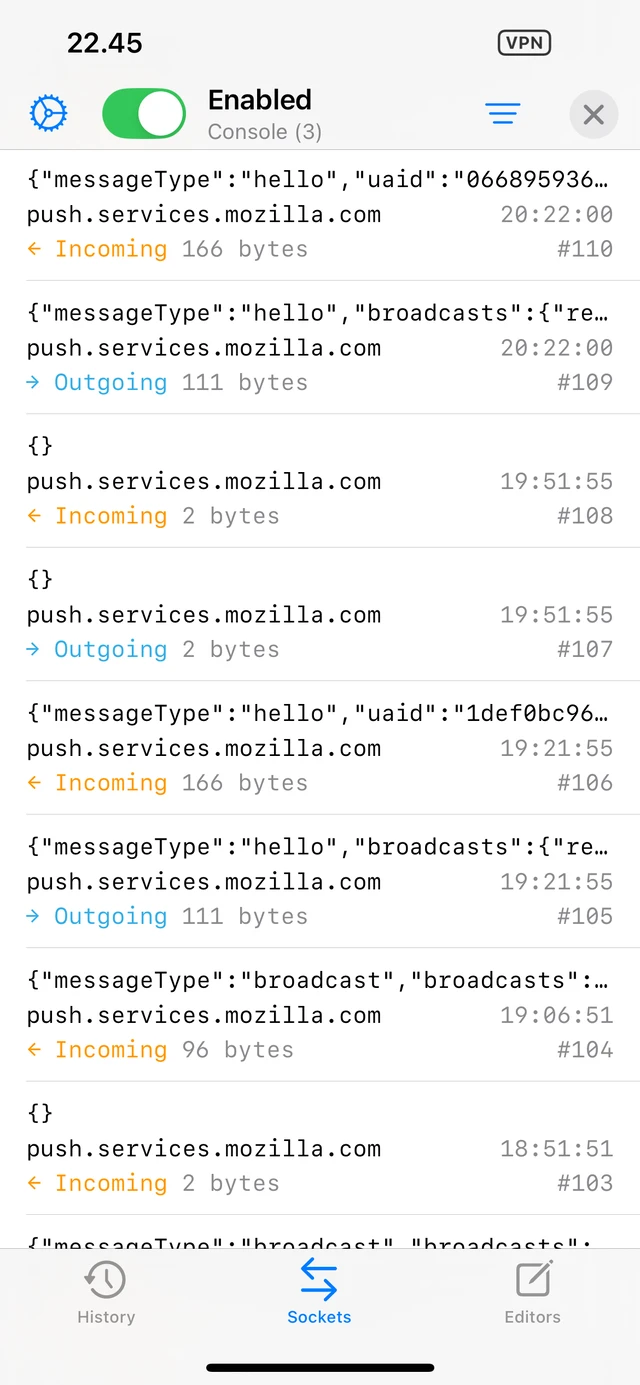
Sockets tool displays a list of all proxied WebSocket messages. Each message displays its payload, target host, direction, and size along with its timestamp.
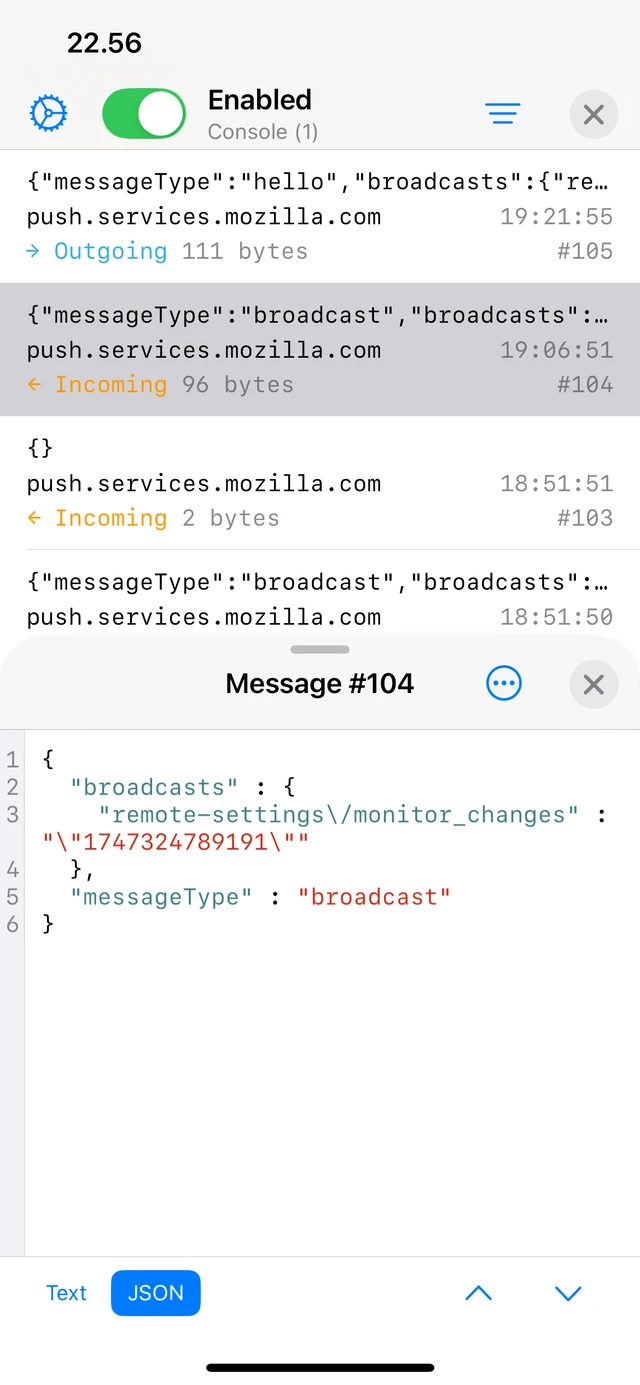
Tapping a message reveals the message viewer for inspecting the WebSocket message payload in various display modes.
Transform
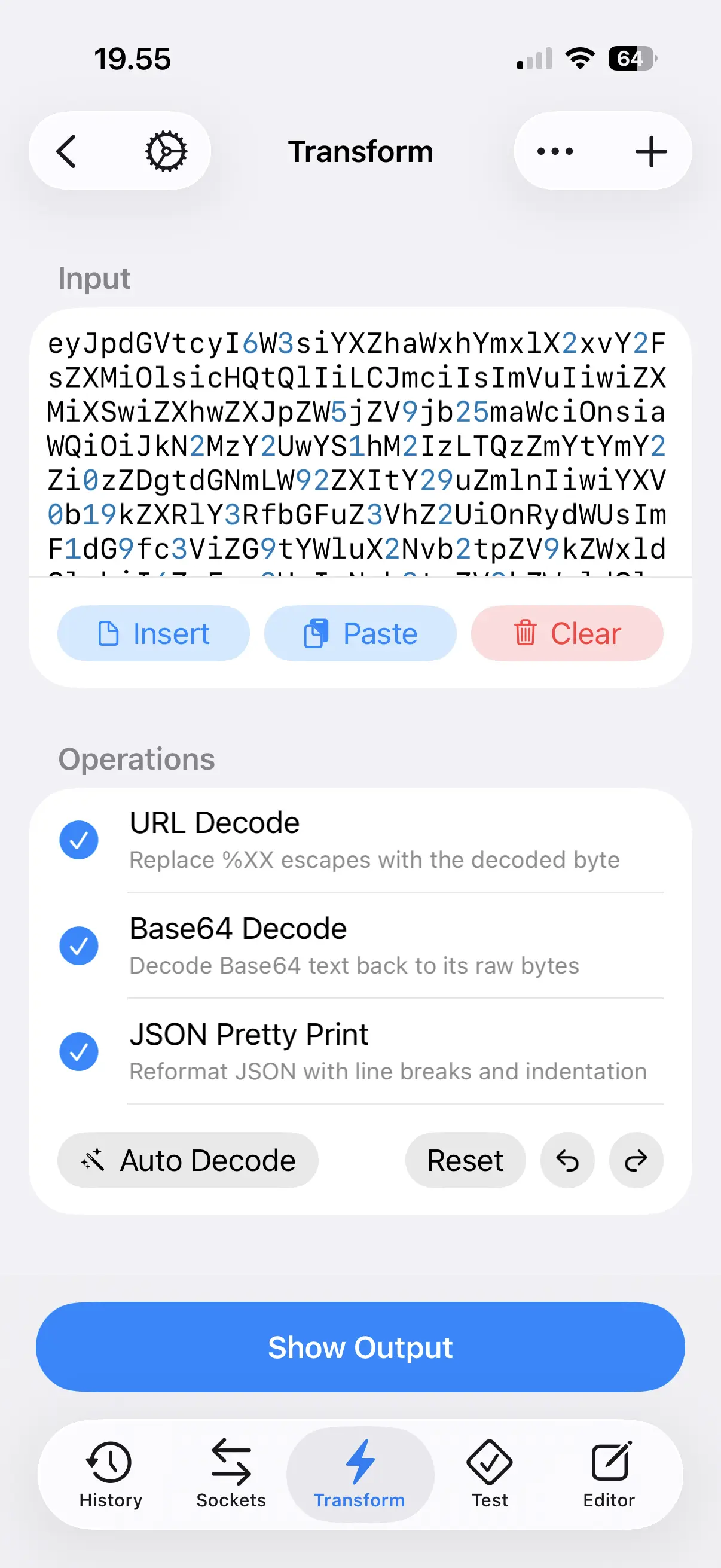
Transform tool builds data transform recipes that encode and decode input data in a selection of formats. It is the same recipe based approach as the Transform tool on Mac, for reading body data that arrives in a format you cannot make sense of as it is.
Tap Insert to bring in body data from a file, or Paste to use the contents of the clipboard as Input. Add operations with the + toolbar button, and they are applied to the input from top to bottom. Each operation has a checkbox that enables or disables it, so you can try different combinations without losing the operations you have added.
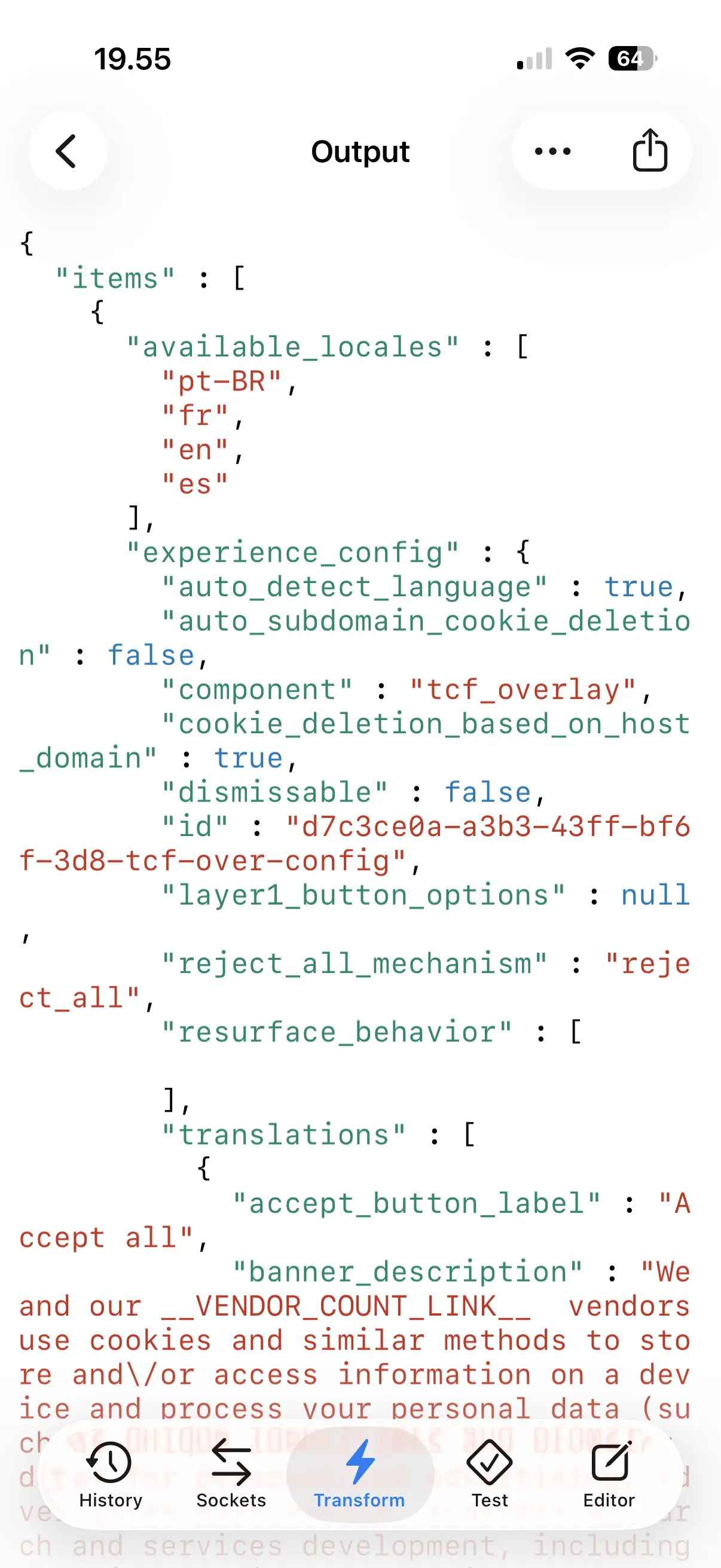
Auto Decode tries to work out the encodings on its own, which usually gets layered data such as Base64 encoded and compressed JSON readable in one tap. Reset clears the operations, and the undo and redo buttons step through your changes. Tap Show Output to see the result.
Test
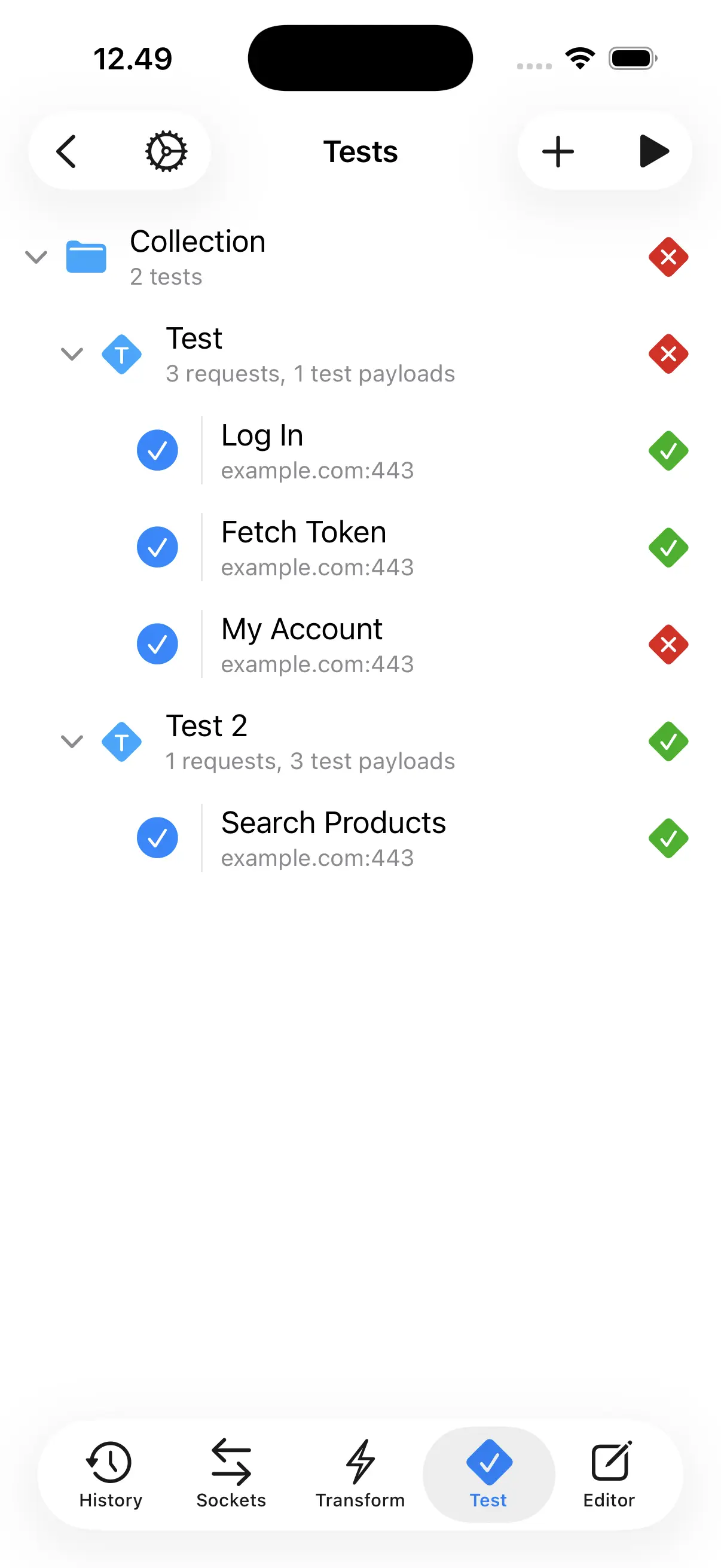
Test tool runs collections of requests against a server and validates the responses with assertions. Tests are organized the same way as in the Test tool on Mac, so a document created on either platform carries its tests to the other.
A Collection holds a number of Tests, and each Test holds the Requests that are run in sequence. The list shows how many requests and test payloads each test has, and toggling a request off skips it during a run.
Add collections, tests and requests with the + toolbar button, and start a run with the play button. As the run progresses, results appear next to each row, so you can see which request in a sequence failed its assertions.
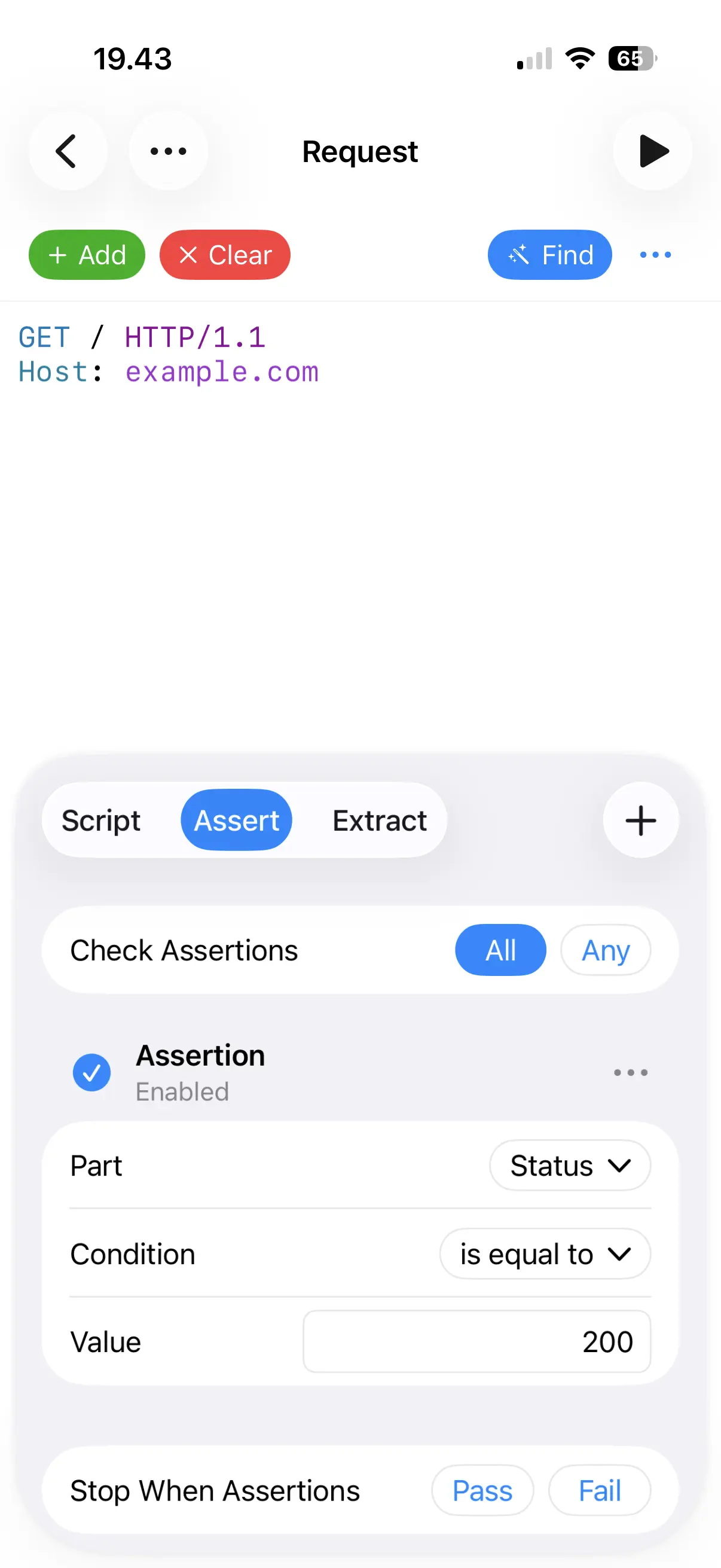
Tap a request to edit it. Assert validates the response, checking a chosen part of it against a condition, and you can decide whether all or any of the assertions need to match, and whether a passing or failing result stops the run. Extract captures values from the response into variables for the requests that follow, and Script runs your own JavaScript before the request is sent and after the response arrives.
Editor
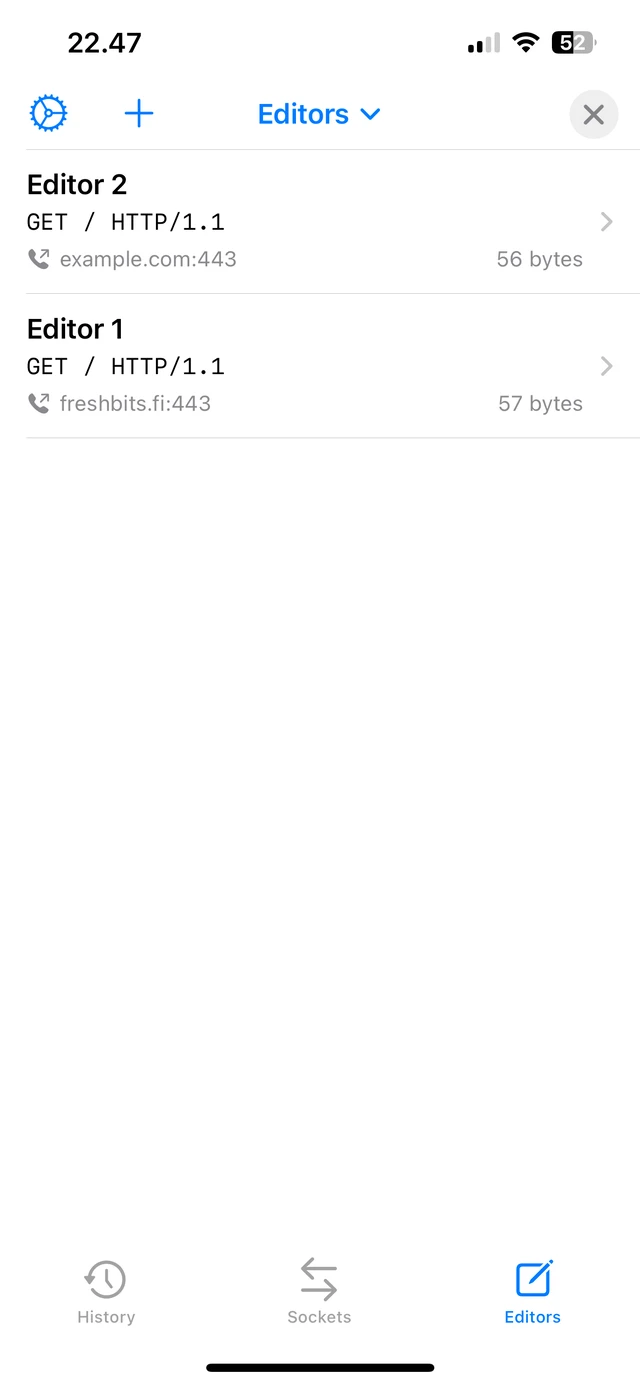
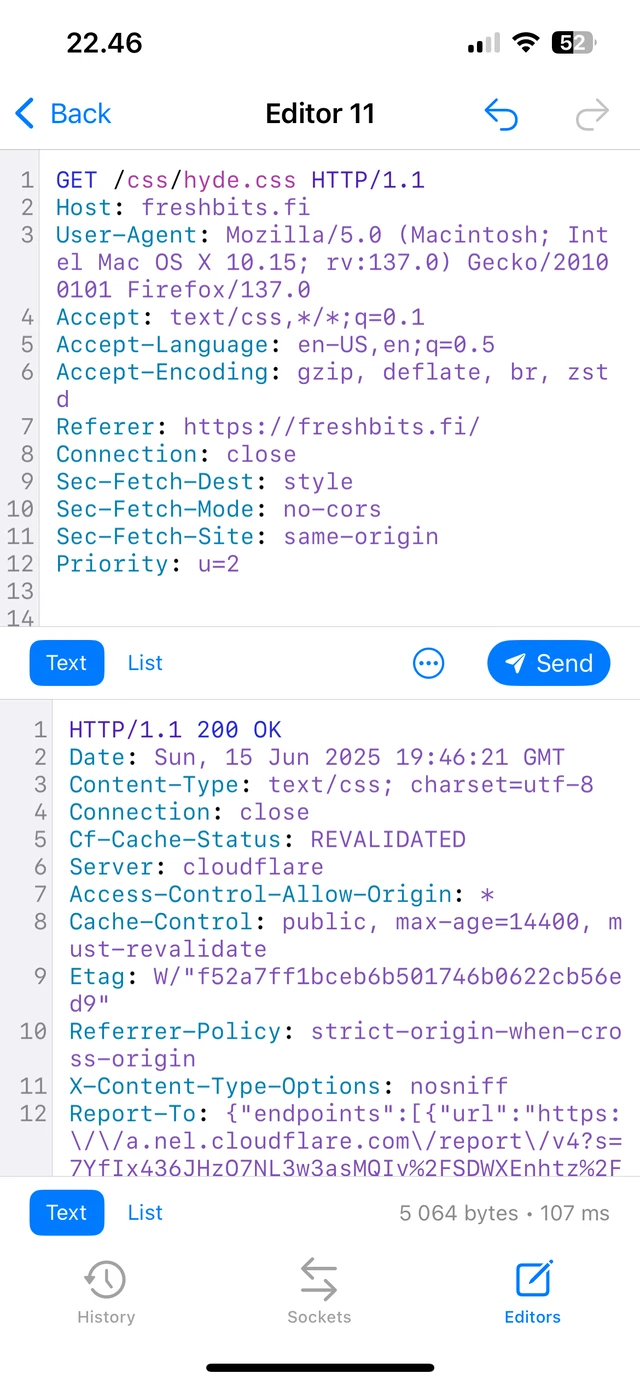
Editor tool lets you repeat requests to the target server and inspect their responses. This can be useful to debug an API on-the-go.
Add new editors from History tool, or tap the + toolbar button to add a new editor to a custom target server. Select Paste from URL to add a new editor from a URL in the clipboard.
Use the navigation buttons in the toolbar to move back and forth in previously sent requests.
Other
Authentication
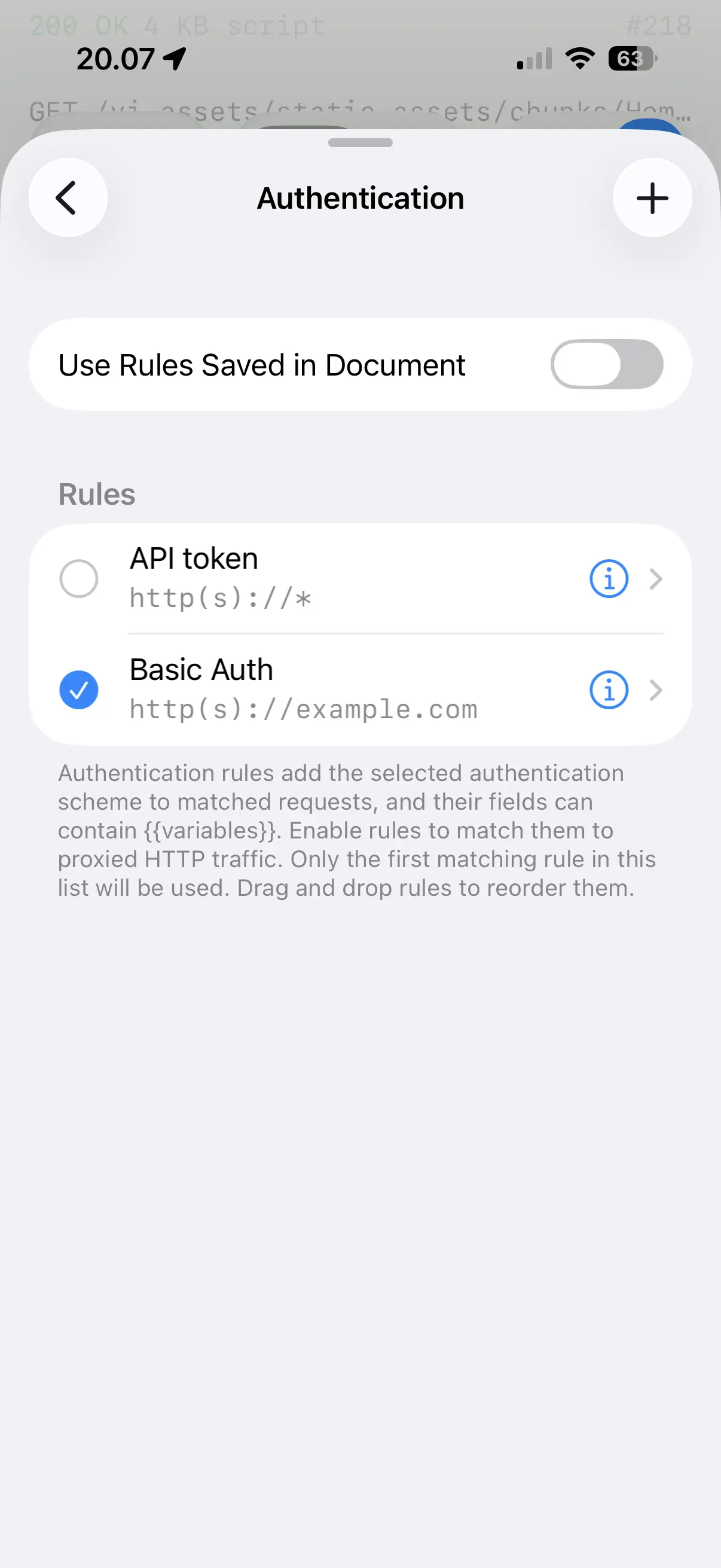
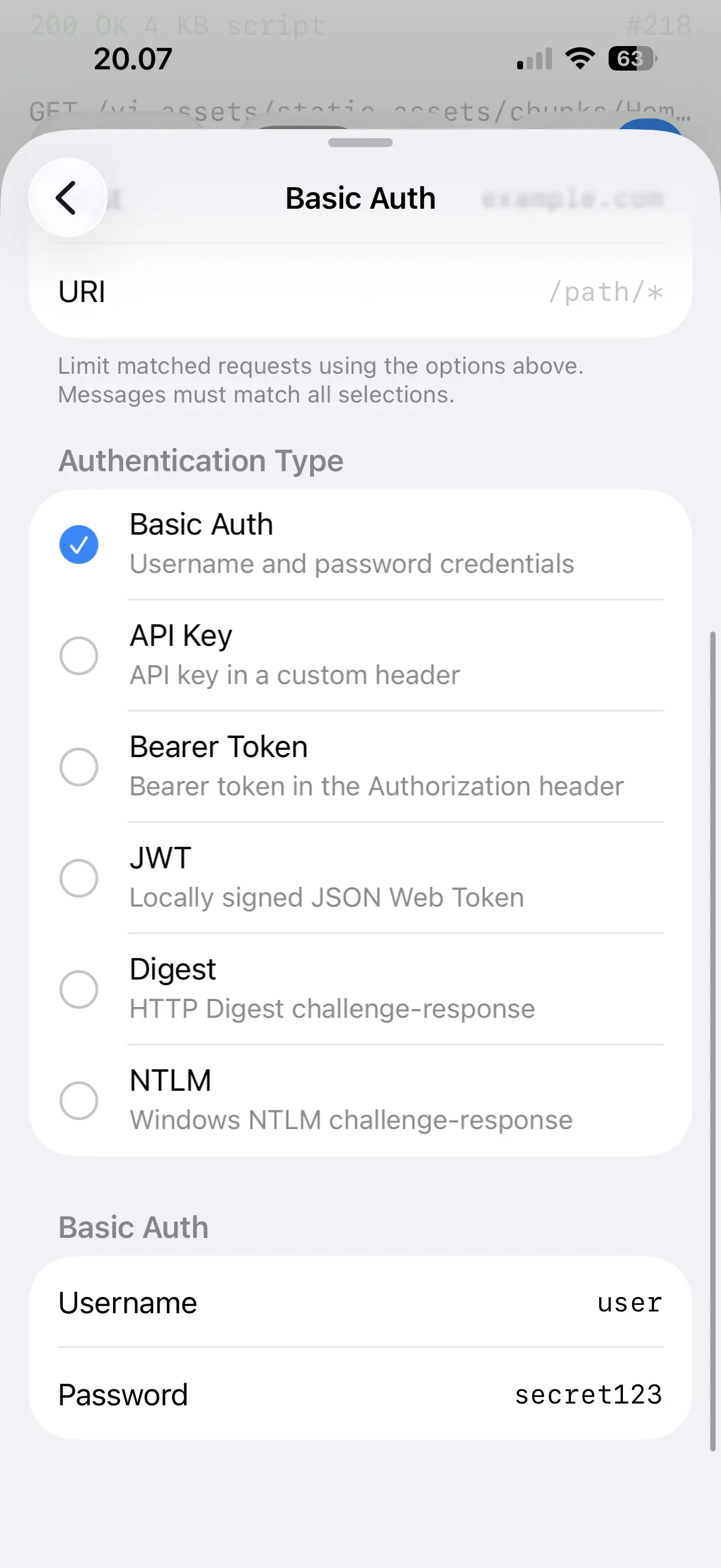
Authentication allows setting up many kinds of credentials for target servers. First set up authentication rules and the app then automatically adds the necessary HTTP headers or negotiates authenticated sessions for matching requests. Rules are applied to all proxied traffic as well as requests sent from Test and Editor tools. See the Mac app documentation for full details.
Rewrites
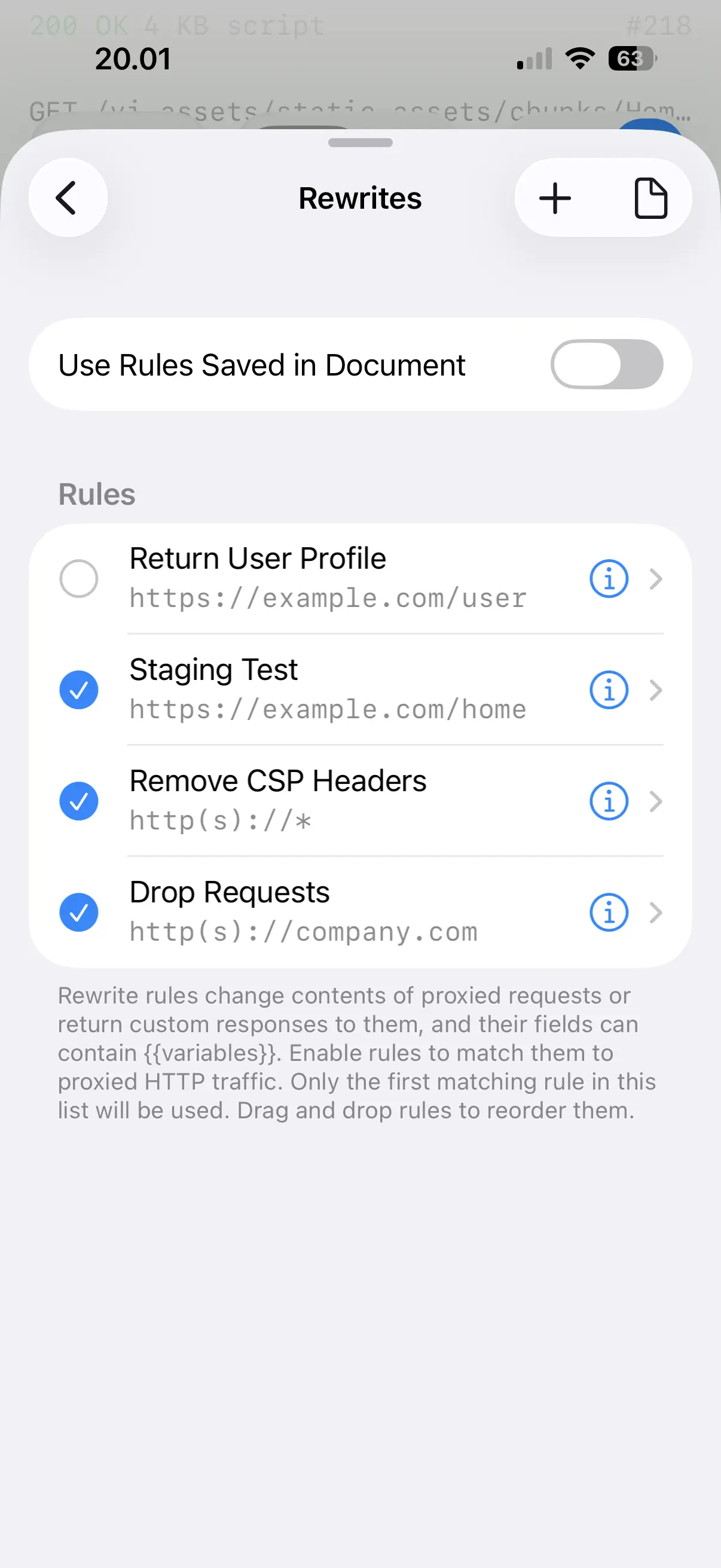
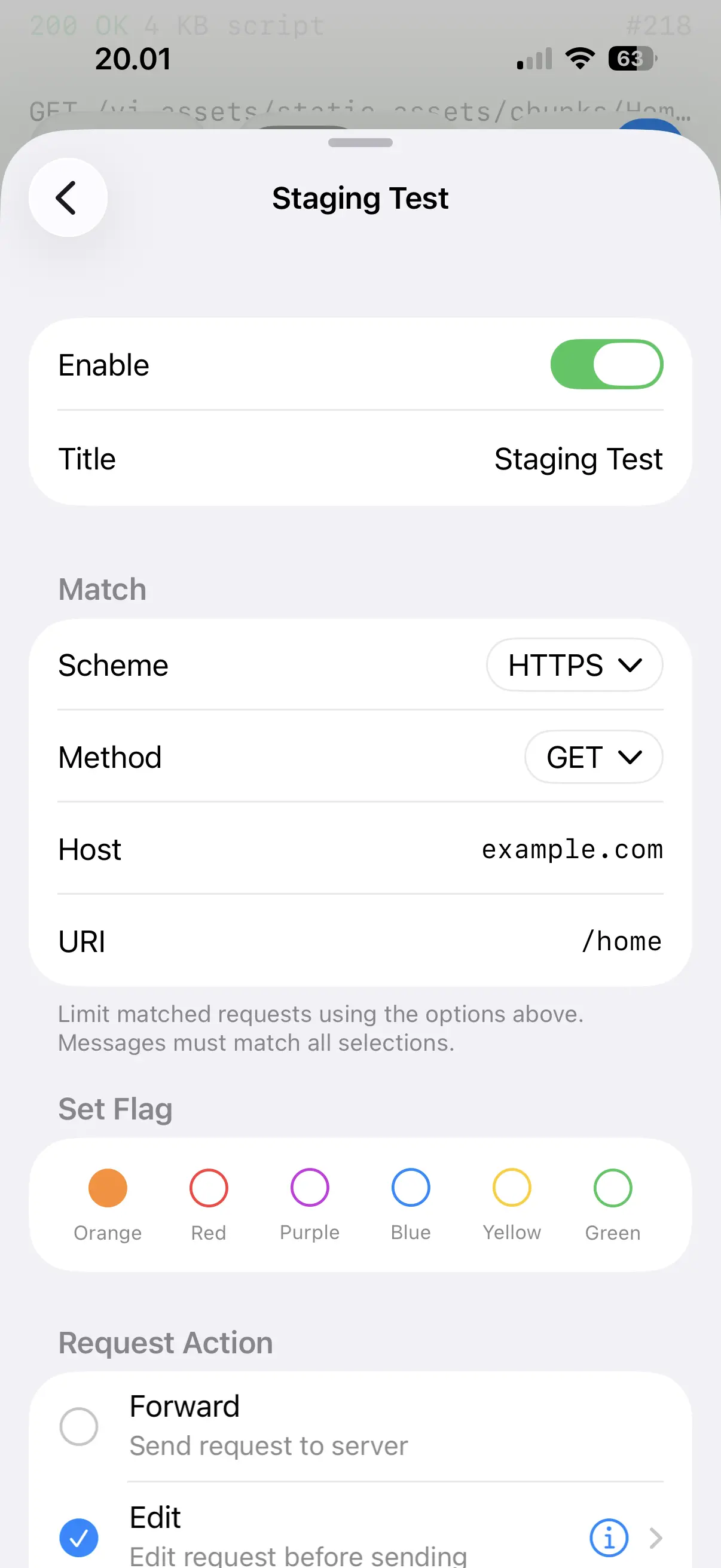
Rewrites change the target address and contents of proxied requests and responses, which lets you return a canned response, redirect a host, or drop a request without any changes on the server. Add a rule from the message context menu in History, or manage the full list of rules in the app settings. Only the first matching rule is applied to a message. See the Mac app documentation for full details.
Scripting
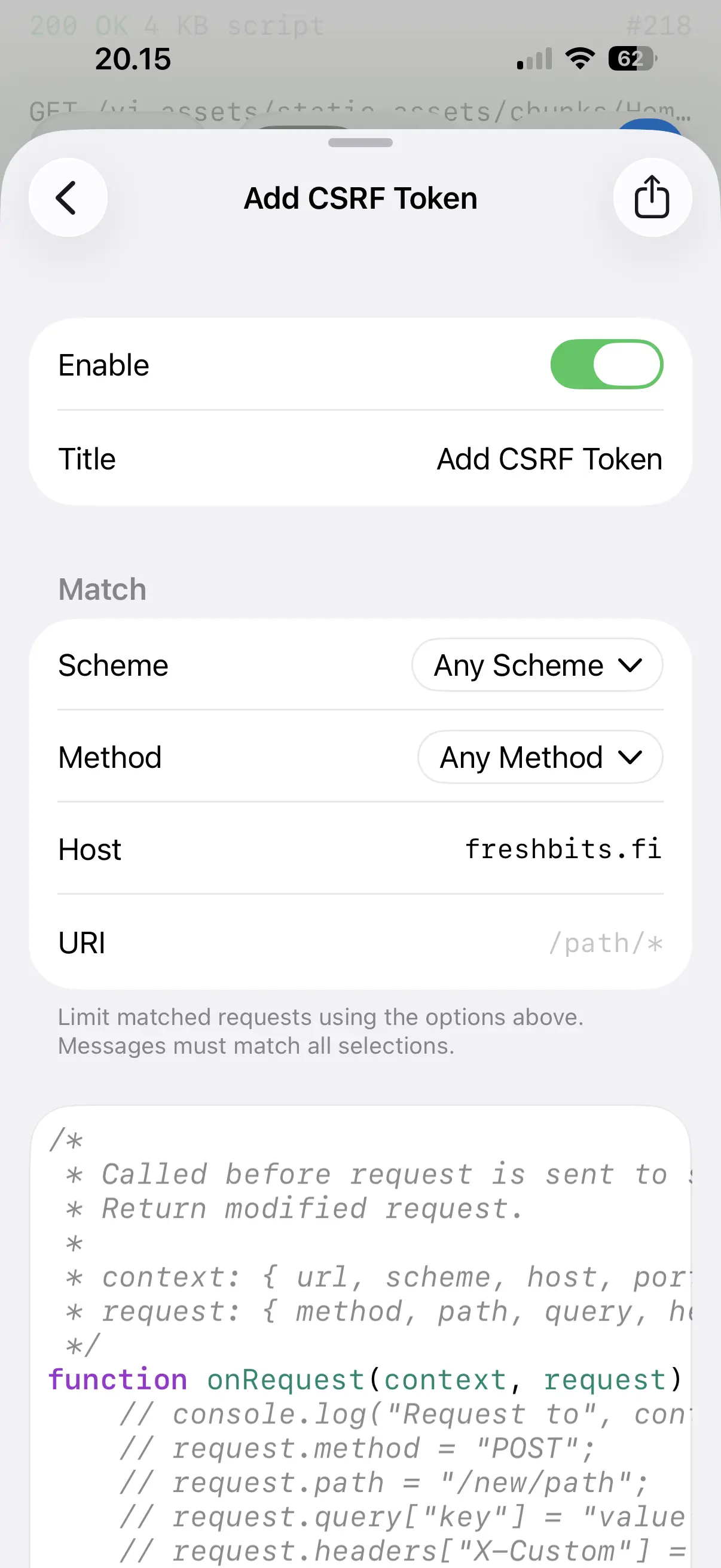
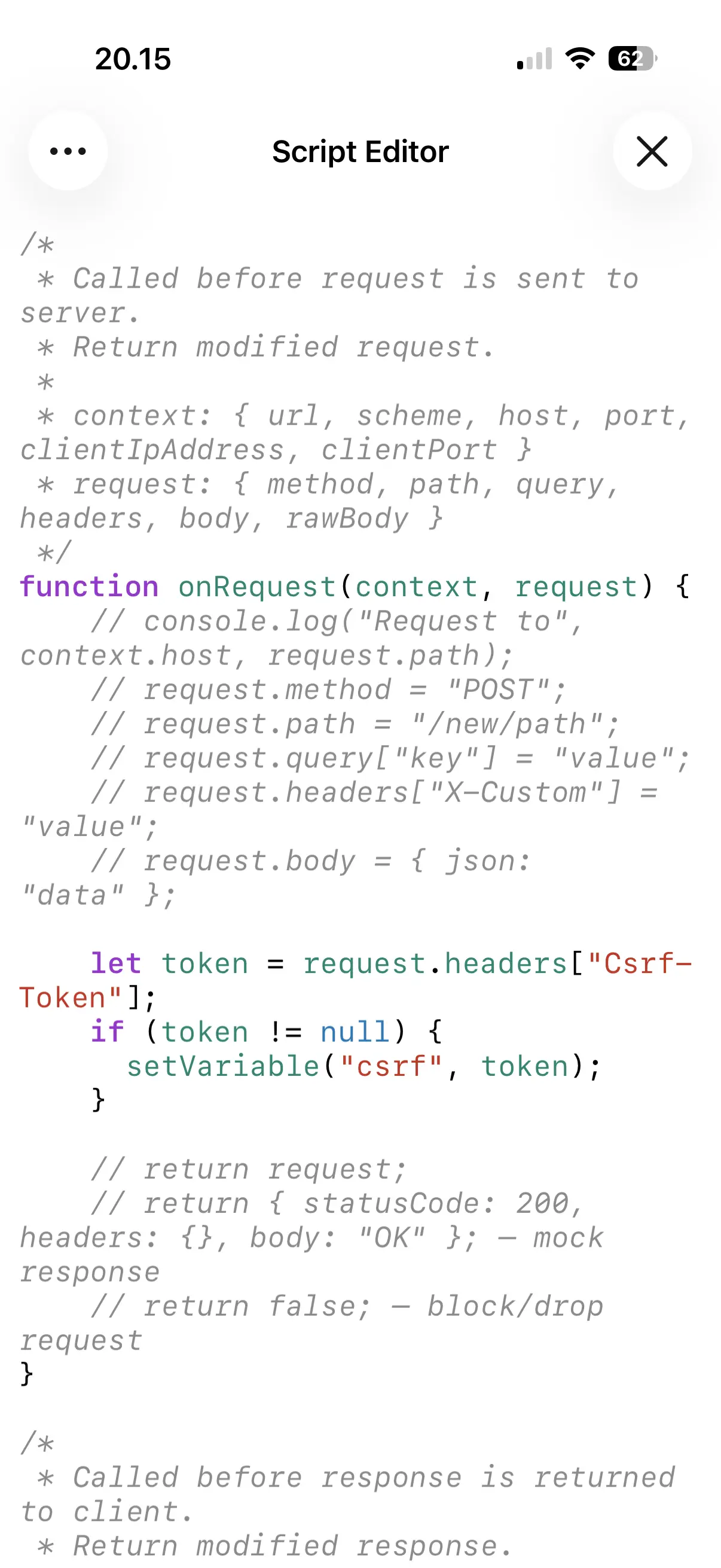
Scripting lets you write JavaScript code that edits requests and responses with your custom logic. You can replace query parameters, header values, and body data. You have utility functions to encode Base64 and ASCII Hex, get and set variables, read and write files and log data to the console. See the Mac app documentation for full details.
Variables
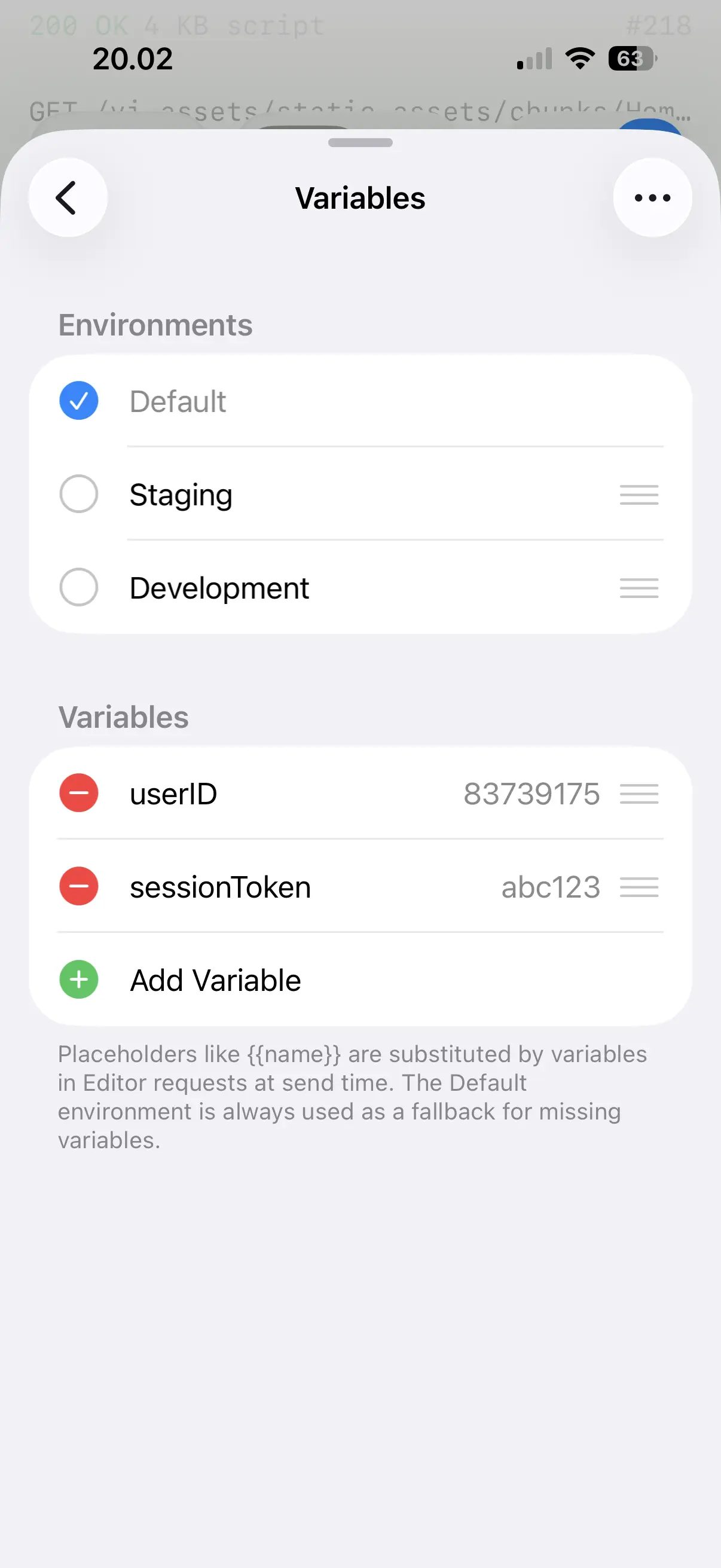
Variables store tokens, identifiers and other values, and are inserted with the {{name}} syntax into requests in Editor and Test, and into Authentication and Rewrites rule fields.
Variables are grouped into Environments, each holding its own set of values, with one of them active at a time. Switching the active environment points the same requests at a different server or account. See the Mac app documentation for full details.
Import and export
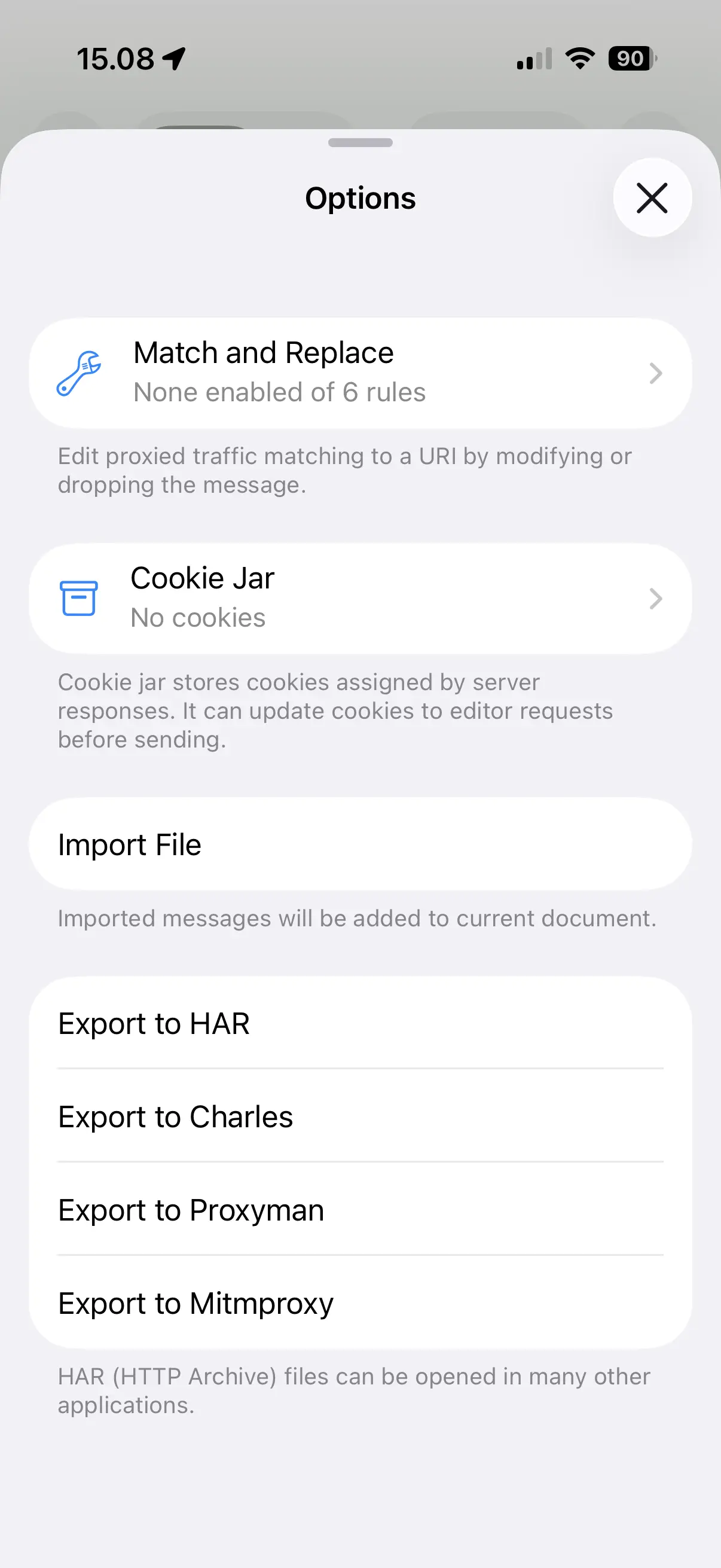
Proxygen for iOS opens and writes HAR and other session file formats. Open Options and tap Import File to add the contents of a file to the current document, or pick one of the exporting options to write all HTTP messages to a file. See Import and Export for the supported formats.