Transform
Build data transformation recipes.
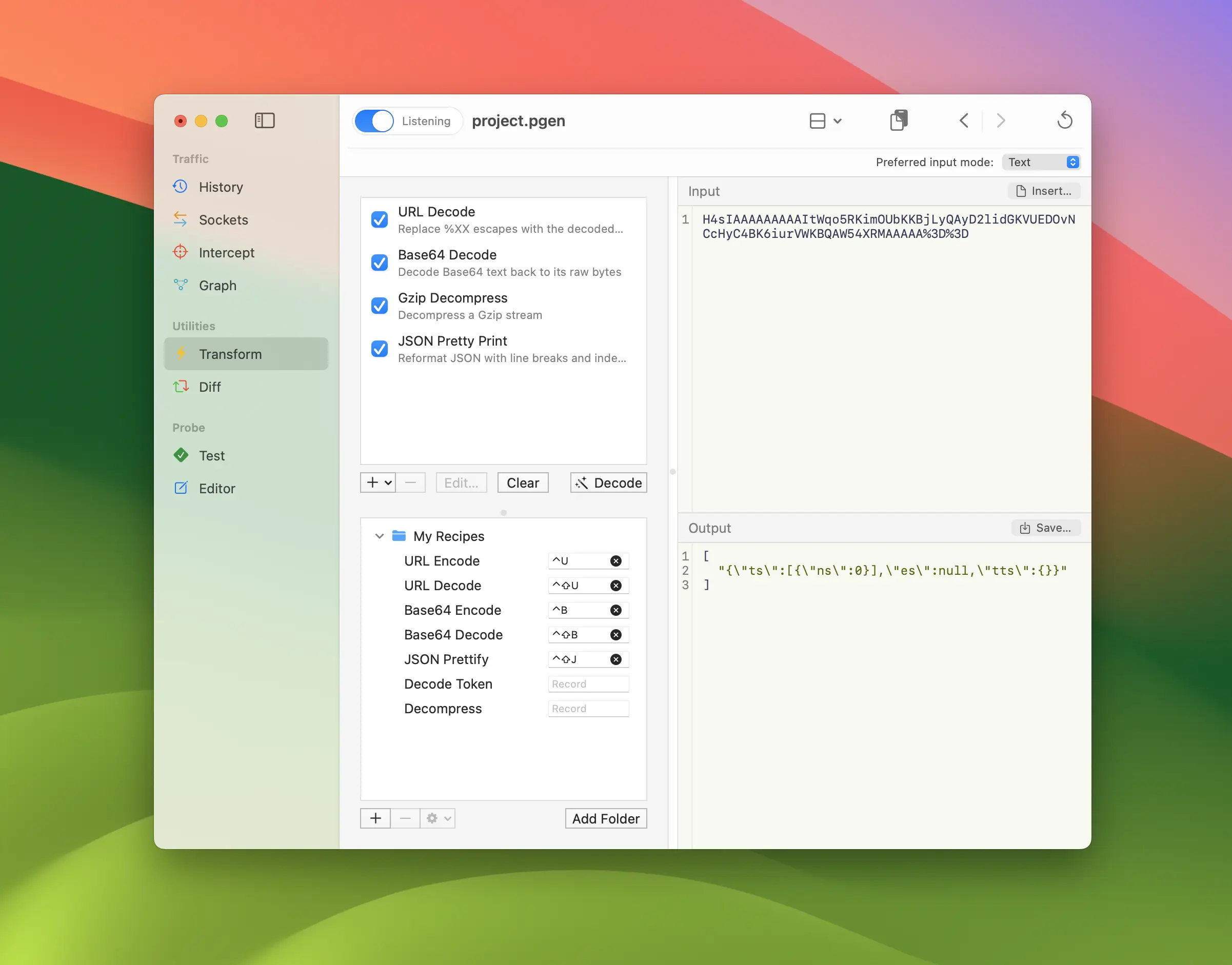
Transform tool lets you build data transform recipes to quickly encode and decode any input data in a selection of formats. It easily integrates with other tools to quickly transform body data in any message editor. Think of it like CyberChef that’s integrated right into Proxygen app.
Operations
The operations list is the working chain that is applied to the Input view, top to bottom, to produce the Output. Pick operations, then drag and drop rows to reorder them.
Each operation has a checkbox that enables or disables it in the chain. This makes it easy to try different combinations without losing operations you’ve added — useful when figuring out the correct encoding for data of unknown format.
Operations like String Replace, JSONPath or HMAC SHA256 Keyed Hash have configurable parameters. Click the Edit button or press Enter to open the editor sheet for the selected operation.
The following operations are currently available, grouped by what they do. New operations get added over time.
URL
| Name | Description |
|---|---|
| URL Decode | Replace %XX escapes with the decoded byte. |
| URL Encode | Escape non-alphanumeric bytes as %XX. |
| URL Encode All | Percent-encode every byte as %XX. |
Base Encodings
| Name | Description |
|---|---|
| Base64 Decode | Decode Base64 text back to its raw bytes. |
| Base64 Encode | Encode raw bytes as Base64 text. |
| Base64URL Decode | Decode URL-safe Base64 text into bytes. |
| Base64URL Encode | Encode bytes as URL-safe Base64 using - and _. |
| Base32 Decode | Decode Base32 text back to its raw bytes. |
| Base32 Encode | Encode raw bytes as Base32 text. |
| Base58 Decode | Decode Base58 text back to its raw bytes. |
| Base58 Encode | Encode raw bytes as Base58 text. |
| Base85 Decode | Decode Ascii85 text back to its raw bytes. |
| Base85 Encode | Encode raw bytes as Ascii85 text. |
| ASCII Hex Decode | Read pairs of hex digits as bytes. |
| ASCII Hex Encode | Render bytes as a hex digit string. |
Escaping
| Name | Description |
|---|---|
| JSON Escape | Escape characters for embedding in a JSON string literal. |
| JS String Escape | Escape characters for a JavaScript string literal. |
| JS String Unescape | Decode JavaScript string escape sequences. |
| Unicode Escape | Escape non-ASCII characters as \uXXXX sequences. |
| CSS Escape | Escape non-alphanumeric characters as CSS \HH. |
| CSS Unescape | Decode CSS \HH escape sequences. |
| Octal Escape | Escape every byte as a \NNN octal sequence. |
| Octal Unescape | Decode \NNN octal escape sequences. |
| Hex Escape | Escape every byte as a \xNN sequence. |
| Hex Unescape | Decode \xNN hex escape sequences. |
HTML
| Name | Description |
|---|---|
| HTML Escape | Replace &, <, >, ", ' with HTML entities. |
| HTML Unescape | Replace HTML entities with their characters. |
| HTML Decimal Entity Encode | Encode every character as a &#NN; entity. |
| HTML Hex Entity Encode | Encode every character as a &#xNN; entity. |
Other Encodings
| Name | Description |
|---|---|
| Quoted-Printable Decode | Decode MIME quoted-printable text. |
| Quoted-Printable Encode | Encode bytes as MIME quoted-printable. |
| UTF-7 Decode | Decode UTF-7 modified-Base64 sequences. |
| UTF-7 Encode | Encode non-direct characters as UTF-7. |
| SAML Decode | Base64-decode then inflate a SAML redirect payload. |
| SAML Encode | Raw-DEFLATE then Base64, as in the SAML redirect binding. |
| JWT Decode | Decode a JWT’s header and payload to JSON. |
Text Encodings
These operations convert between UTF-8 and a legacy or non-Unicode text encoding. Each available encoding appears twice — as a decode (… to UTF-8) and an encode (UTF-8 to …).
The available encodings are Unicode (UTF-16), Western (ISO Latin 1 / ISO Latin 9 / Windows Latin 1), Central European (ISO Latin 2 / Windows), Japanese (ISO 2022-JP / EUC / Shift JIS), Traditional Chinese (Big 5), Simplified Chinese (GB 18030), Korean (EUC), Cyrillic (Windows / KOI8-R), Turkish (Windows), and Arabic (Windows).
Formatting
| Name | Description |
|---|---|
| JSON Pretty Print | Reformat JSON with line breaks and indentation. |
| JSONPath | Extract a value from JSON using a JSONPath query. |
| XML Pretty Print | Reformat XML with line breaks and indentation. |
| XPath | Extract a value from XML using an XPath query. |
String
| Name | Description |
|---|---|
| Lowercase | Convert text to lowercase. |
| Uppercase | Convert text to uppercase. |
| Add Prefix | Prepend a string to the text. |
| Add Suffix | Append a string to the text. |
| String Replace | Replace all occurrences of a string with another. |
| Regex Replace | Replace matches of a regular expression. |
Hashing
| Name | Description |
|---|---|
| MD5 Hash | Compute the MD5 hash of the bytes. |
| MD4 Hash | Compute the MD4 hash of the bytes. |
| MD2 Hash | Compute the MD2 hash of the bytes. |
| SHA1 Hash | Compute the SHA-1 hash of the bytes. |
| SHA224 Hash | Compute the SHA-224 hash of the bytes. |
| SHA256 Hash | Compute the SHA-256 hash of the bytes. |
| SHA384 Hash | Compute the SHA-384 hash of the bytes. |
| SHA512 Hash | Compute the SHA-512 hash of the bytes. |
Checksums
| Name | Description |
|---|---|
| CRC-32 Checksum | Compute the CRC-32 checksum of the bytes. |
| Adler-32 Checksum | Compute the Adler-32 checksum of the bytes. |
HMAC
| Name | Description |
|---|---|
| HMAC MD5 Keyed Hash | HMAC-MD5 keyed hash with the given hex key. |
| HMAC SHA1 Keyed Hash | HMAC-SHA1 keyed hash with the given hex key. |
| HMAC SHA256 Keyed Hash | HMAC-SHA256 keyed hash with the given hex key. |
| HMAC SHA384 Keyed Hash | HMAC-SHA384 keyed hash with the given hex key. |
| HMAC SHA512 Keyed Hash | HMAC-SHA512 keyed hash with the given hex key. |
Encryption
| Name | Description |
|---|---|
| AES-GCM Encrypt | Encrypt with AES-GCM using a hex key and nonce. |
| AES-GCM Decrypt | Decrypt AES-GCM ciphertext (tag appended) with a hex key and nonce. |
| AES-CBC Encrypt | Encrypt with AES-CBC and PKCS#7 padding using a hex key and IV. |
| AES-CBC Decrypt | Decrypt AES-CBC (PKCS#7) ciphertext with a hex key and IV. |
| AES-CTR Encrypt | Encrypt with AES-CTR using a hex key and initial counter block. |
| AES-CTR Decrypt | Decrypt AES-CTR using a hex key and initial counter block. |
| ChaCha20-Poly1305 Encrypt | Encrypt with ChaCha20-Poly1305 using a hex key and nonce. |
| ChaCha20-Poly1305 Decrypt | Decrypt ChaCha20-Poly1305 ciphertext (tag appended) with a hex key and nonce. |
Compression
| Name | Description |
|---|---|
| Dechunk | Unwrap HTTP chunked transfer-encoding framing. |
| Gzip Decompress | Decompress a Gzip stream. |
| Gzip Compress | Compress bytes as Gzip. |
| Deflate Decompress | Decompress a zlib/Deflate stream. |
| Deflate Compress | Compress bytes as zlib/Deflate. |
| Brotli Decompress | Decompress a Brotli stream. |
| Brotli Compress | Compress bytes as Brotli. |
| Zstandard Decompress | Decompress a Zstandard stream. |
| Zstandard Compress | Compress bytes as Zstandard. |
| LZMA Decompress | Decompress an LZMA (XZ) stream. |
| LZMA Compress | Compress bytes as LZMA (XZ). |
Binary Decoders
These operations decode their input for display rather than transforming the bytes. When placed last in the chain, the result is rendered as a tree in the output view.
| Name | Description |
|---|---|
| ASN.1 Decode | Render ASN.1 BER/DER (TLV) as a tree. |
| Amazon Ion Decode | Render Amazon Ion bytes as a tree. |
| BSON Decode | Render BSON bytes as a tree. |
| CBOR Decode | Render CBOR bytes as a tree. |
| FlexBuffers Decode | Render FlexBuffers bytes as a tree. |
| gRPC Decode | Render the gRPC frame’s protobuf payload as a tree. |
| Java Serialization Decode | Render a Java serialized object graph as a tree. |
| Keyed Archive Decode | Render an NSKeyedArchiver archive as a tree. |
| MessagePack Decode | Render MessagePack bytes as a tree. |
| PHP Serialize Decode | Render PHP serialized data as a tree. |
| Python Pickle Decode | Render a Python pickle stream as a tree. |
| Property List Decode | Render a binary property list as a tree. |
| Protobuf Decode | Render Protocol Buffer bytes as a tree. |
| Ruby Marshal Decode | Render a Ruby Marshal object graph as a tree. |
| Smile Decode | Render Smile-encoded bytes as a tree. |
| Thrift Decode | Render Thrift binary or compact bytes as a tree. |
| UBJSON Decode | Render UBJSON bytes as a tree. |
| WBXML Decode | Render WBXML (WAP Binary XML) as a tree. |
Auto decode
Click the Decode button (or press ⇧⌘D) below the operations list to let Proxygen find a decoding chain automatically. It inspects the input bytes — looking for Base64, URL encoding, HTML entities, JWTs, delimited Ascii85, chunked transfer framing, ASCII hex, and Gzip / Zstandard / Deflate / Brotli / XZ signatures — then recurses through the plausible decoders until it reaches a recognised structured format (JSON, XML, Protobuf, etc.).
A JWT is recognised as three Base64URL segments whose header carries an alg claim, and chains into the JSON tree view. Ascii85 is auto-detected only in its delimited <~ … ~> form, since raw Ascii85 overlaps Base64 and plain text too much to detect reliably.
The detected chain replaces the contents of the operations list. Make further adjustments to the recipe manually if necessary.
Recipe library
Below the operations list is the recipe library — saved snapshots of transform recipes that you can recall at any time. Recipes are organised into folders so you can keep related ones together.
Click + to save a snapshot of the current operations chain as a new recipe in the library. The saved entry is a copy: later edits to the working chain don’t affect it. Press Enter to rename a recipe or folder.
Selecting a recipe in the library loads its operations into the working chain.
Assign a keyboard shortcut to a recipe in the Shortcut column so you can quickly encode or decode selected text in the Editor tool.
Input and output
Only the Input view is editable. Type any text there and the current operations chain is applied in real time, with the result shown in the Output view. Toggling operations or editing parameters instantly updates the output.
Use ⌘R and ⇧⌘R keyboard shortcuts to transform request or response body data in the History tool. Paste data into the Input view using the Paste from clipboard toolbar button.
Click Insert to select a file and insert its data in the input view. The input view automatically switches to a hex viewer for non-textual data. You can also pick Hex bytes as the Preferred input mode in the bottom accessory bar to always edit input data as hex.
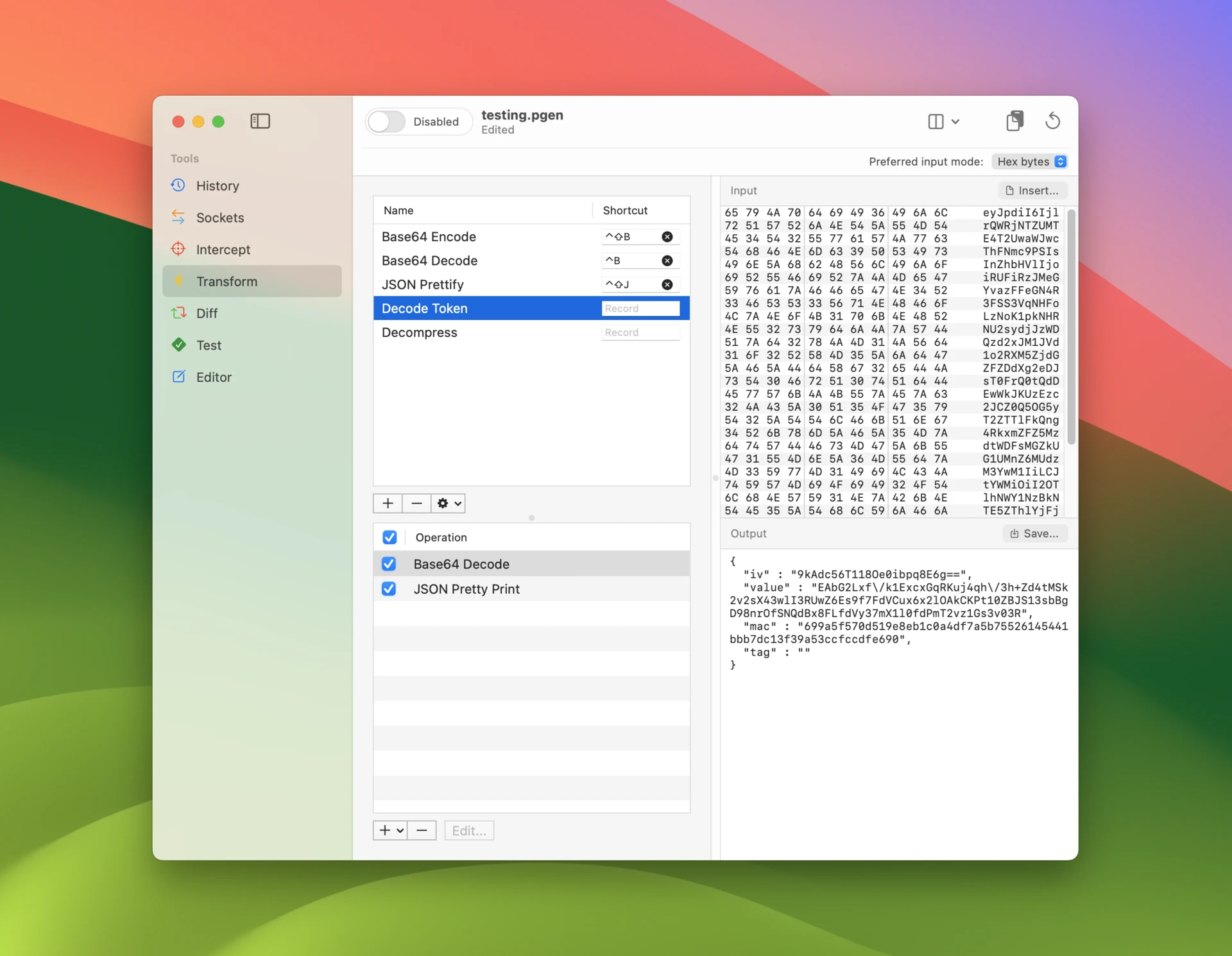
You can save the current contents of the output view to a file using the Save button. Note that you can select a range of bytes to be saved in the hex viewer. Switch the input/output split between vertical and horizontal layouts from the toolbar.